Lab 2: Local Fake GPU Setup on macOS
This lab walks you through setting up a fully local Kubernetes cluster on macOS using OrbStack's built-in Kubernetes and run-ai/fake-gpu-operator, then installing HAMi online.
This lab does not require a real NVIDIA GPU. It is designed for classroom preparation, understanding HAMi component architecture, verifying GPU Pod scheduling workflows, and quickly getting familiar with basic HAMi usage on a personal computer.
What You'll Get
After completing this lab, you will have a local Kubernetes cluster with:
- fake-gpu-operator simulating
nvidia.com/gpuresources on CPU nodes - HAMi scheduler, admission webhook, and other control plane components running normally
- Regular Pods can request simulated GPUs via
nvidia.com/gpu - You can observe the complete chain from fake GPU resource discovery, Pod request, scheduling, to running
Note: fake GPU does not represent real GPU memory isolation, compute isolation, CUDA runtime, or driver capabilities. This lab is for understanding HAMi components and basic scheduling workflows. Real memory slicing (
nvidia.com/gpumem), compute limits (nvidia.com/gpucores), CUDA program execution, and performance isolation still require a real NVIDIA GPU environment.
Installation Overview
The entire local installation process consists of 7 steps:
%% title: Local Fake GPU Installation Overview
flowchart LR
    Step1["Step 1<br/>Verify Local Environment"] --> Step2["Step 2<br/>Install fake-gpu-operator"]
    Step2 --> Step3["Step 3<br/>Install HAMi"]
    Step3 --> Step4["Step 4<br/>Install Prometheus"]
    Step4 --> Step5["Step 5<br/>Run Simulated GPU Workloads"]
    Step5 --> Step6["Step 6<br/>Install HAMi WebUI"]
Step6 --> Step7["Step 7<br/>Observe HAMi and fake GPU"]| Step | Purpose | What It Solves |
|---|---|---|
| Verify Local Environment | Check OrbStack, kubectl, Helm | Ensure Kubernetes cluster is available |
| Install fake-gpu-operator | Simulate NVIDIA GPU resources | Allow nodes without GPUs to report nvidia.com/gpu |
| Install HAMi | Deploy HAMi control plane | Observe HAMi scheduler, webhook, and other components |
| Install Prometheus | Deploy monitoring stack | Collect GPU metrics and provide data source for HAMi WebUI |
| Run Simulated GPU Workloads | Verify scheduling workflow | Experience Pod GPU request and scheduling |
| Install HAMi WebUI | Deploy visual management interface | Graphically view GPU nodes, resource allocation, and usage trends |
| Observe HAMi and fake GPU | Understand component responsibility boundaries | Clarify which capabilities require real GPUs |
Prerequisites
- macOS, Intel or Apple Silicon
- OrbStack installed with built-in Kubernetes enabled
- Access to GitHub, GHCR, and the HAMi Helm repository
- At least 4 CPU and 8 GB of memory available for the lab
Why OrbStack? OrbStack comes with built-in Kubernetes (based on k3s), so there's no need to install kind or Docker Desktop separately. It uses fewer resources, starts faster, and is the preferred choice for local labs on macOS.
Step 1: Verify Local Environment
First, check that the Kubernetes cluster is running normally.
Check the cluster version:
kubectl version
Example output:
Client Version: v1.33.9
Kustomize Version: v5.6.0
Server Version: v1.33.9+orb1
The
orb1suffix inServer Versionindicates this is OrbStack's built-in Kubernetes. Client and Server versions should match.
View cluster nodes:
kubectl get nodes -o wide
Example output:
NAME       STATUS   ROLES                  AGE    VERSION        INTERNAL-IP     EXTERNAL-IP   OS-IMAGE   KERNEL-VERSION                             CONTAINER-RUNTIME
orbstack   Ready    control-plane,master   148d   v1.33.9+orb1   192.168.139.2   <none>        OrbStack   7.0.5-orbstack-00330-ge3df4e19b0a0-dirty   docker://29.4.0
The node name is
orbstack, role iscontrol-plane,master, this is a single-node cluster acting as both control plane and worker node.STATUSofReadymeans the cluster is healthy.
Check Helm (needed later for installing fake-gpu-operator and HAMi):
helm version
Example output:
version.BuildInfo{Version:"v4.2.0", ...}
Helm 3.x or later is required. If Helm is not installed, run
brew install helm.
Step 2: Install fake-gpu-operator
fake-gpu-operator simulates GPU resources on nodes without NVIDIA GPUs and sets the node capacity to nvidia.com/gpu. This step replaces the NVIDIA GPU Operator, drivers, device-plugin, and DCGM metrics collection pipeline that would be present in a real GPU environment.
2.1 Create Namespace and Set Security Policy
kubectl create namespace gpu-operator
kubectl label namespace gpu-operator pod-security.kubernetes.io/enforce=privileged
namespace/gpu-operator created
namespace/gpu-operator labeled
The
gpu-operatornamespace is dedicated to fake-gpu-operator components. Theprivilegedlabel allows Pods to run in privileged mode, the fake-gpu-operator's device-plugin needs access to host device files.
2.2 Label the Node
fake-gpu-operator uses node labels to determine which nodes should simulate GPUs:
NODE_NAME=$(kubectl get nodes -o jsonpath='{.items[0].metadata.name}')
kubectl label node ${NODE_NAME} run.ai/simulated-gpu-node-pool=default
node/orbstack labeled
The label
run.ai/simulated-gpu-node-pool=defaulttells fake-gpu-operator: "Simulate GPUs on this node." This is fake-gpu-operator's node selector mechanism.
2.3 Install fake-gpu-operator
export FAKE_GPU_OPERATOR_VERSION=0.0.80

helm upgrade -i gpu-operator \
    oci://ghcr.io/run-ai/fake-gpu-operator/fake-gpu-operator \
    --namespace gpu-operator \
    --create-namespace \
    --version ${FAKE_GPU_OPERATOR_VERSION}
Release "gpu-operator" does not exist. Installing it now.
Pulled: ghcr.io/run-ai/fake-gpu-operator/fake-gpu-operator:0.0.80
Digest: sha256:...
NAME: gpu-operator
LAST DEPLOYED: ...
NAMESPACE: gpu-operator
STATUS: deployed
REVISION: 1
TEST SUITE: None
helm upgrade -i= install if the release doesn't exist, upgrade if it does. Theoci://prefix means pulling the Helm Chart from GitHub Container Registry.0.0.80is a stable version released in 2026-04.
2.4 Wait for Components to Run
kubectl get pods -n gpu-operator
Example output:
NAME                                       READY   STATUS    RESTARTS   AGE
device-plugin-l8m6j                        1/1     Running   0          31m
kwok-gpu-device-plugin-5996cdf4f9-mfvpm    1/1     Running   0          31m
nvidia-dcgm-exporter-knfsn                 1/1     Running   0          31m
nvidia-dcgm-exporter-kwok-b8fd4976-blb8c   1/1     Running   0          31m
status-updater-59965d7bc6-fbkmk            1/1     Running   0          31m
topology-server-9d57b6c79-7dv6h            1/1     Running   0          31m
Component descriptions:
device-plugin: DaemonSet running on each GPU node, reporting GPU resources to Kuberneteskwok-gpu-device-plugin: Uses KWOK (Kubernetes WithOut Kubelet) to simulate GPU devicesnvidia-dcgm-exporter: Simulates DCGM metrics export (GPU temperature, utilization, etc.)status-updater: Updates node GPU statustopology-server: Manages GPU topology information
If all Pods are Running with READY at 1/1, the installation is successful.
2.5 Verify Simulated GPU Resources
Check whether the node reports GPU capacity:
kubectl get node ${NODE_NAME} \
    -o custom-columns=NAME:.metadata.name,GPU:.status.capacity.nvidia\\.com/gpu
NAME       GPU
orbstack   2
The
GPUcolumn shows2, meaning fake-gpu-operator has simulated 2 GPUs on the node. This number can be adjusted in the fake-gpu-operator configuration.
View the node's detailed GPU labels:
kubectl get node ${NODE_NAME} --show-labels | tr ',' '\n' | grep -E 'nvidia.com/gpu|run.ai'
nvidia.com/gpu.count=2
nvidia.com/gpu.deploy.dcgm-exporter=true
nvidia.com/gpu.deploy.device-plugin=true
nvidia.com/gpu.memory=11441
nvidia.com/gpu.present=true
nvidia.com/gpu.product=Tesla-K80
run.ai/fake.gpu=true
run.ai/simulated-gpu-node-pool=default
These labels simulate information from a real GPU node:
nvidia.com/gpu.count=2: Simulates 2 GPUsnvidia.com/gpu.product=Tesla-K80: Simulates GPU model as Tesla K80nvidia.com/gpu.memory=11441: Simulates 11441 MiB of memory per GPUrun.ai/fake.gpu=true: Marks this as a simulated GPU
If the GPU column is empty, check the node labels:
kubectl get node ${NODE_NAME} --show-labels | grep run.ai/simulated-gpu-node-pool
Step 3: Install HAMi
This step installs HAMi's control plane components:
hami-scheduler: Scheduling enhancement component that participates in GPU Pod scheduling decisions- Admission webhook: Automatically rewrites GPU Pod scheduler configuration
- Helm release: Manages all HAMi-related Kubernetes resources
In the fake GPU environment, GPU resources are provided by fake-gpu-operator. To avoid two device-plugins simultaneously registering nvidia.com/gpu, this lab does not let the HAMi device-plugin take over the fake nodes.
3.1 Add the HAMi Helm Repository
helm repo add hami-charts https://project-hami.github.io/HAMi/
helm repo update
"hami-charts" has been added to your repositories
Hang tight while we grab the latest from your chart repositories...
...Successfully got an update from the "hami-charts" chart repository
Update Complete. ⎈Happy Helming!⎈
3.2 Install HAMi
helm install hami hami-charts/hami \
    -n kube-system \
    --set devicePlugin.enabled=false
NAME: hami
LAST DEPLOYED: ...
NAMESPACE: kube-system
STATUS: deployed
REVISION: 1
TEST SUITE: None
--set devicePlugin.enabled=falseis the key parameter. Because fake-gpu-operator is already managing GPU devices, starting HAMi's device-plugin as well would cause a conflict. Therefore, only HAMi's scheduling enhancement components are installed here.
3.3 Verify HAMi Components
kubectl get pods -n kube-system | grep hami
hami-scheduler-5d9678f989-dnf65 2/2 Running 0 28m
2/2indicates this Pod has 2 containers (scheduler container + webhook container), both running normally.
View HAMi's control plane resources:
kubectl get deploy,svc,cm,sa -n kube-system | grep hami
deployment.apps/hami-scheduler           1/1     1            1           28m
service/hami-scheduler   NodePort    192.168.194.156   <none>        443:31998/TCP,31993:31993/TCP   28m
configmap/hami-scheduler                                         1      28m
configmap/hami-scheduler-device                                  1      28m
serviceaccount/hami-scheduler                                0         28m
Resource descriptions:
deployment.apps/hami-scheduler: HAMi scheduler Deploymentservice/hami-scheduler: Scheduler Service, typeNodePort, ports31998(webhook) and31993(scheduling)configmap/hami-scheduler: Scheduler configurationconfigmap/hami-scheduler-device: Device configurationserviceaccount/hami-scheduler: Service account used by the scheduler
3.4 Confirm All Helm Releases
helm list -A
NAME         NAMESPACE    REVISION UPDATED                              STATUS   CHART                    APP VERSION
gpu-operator gpu-operator 1        2026-05-21 16:12:01.872099 +0800 CST deployed fake-gpu-operator-0.0.80 0.0.80
hami         kube-system  1        2026-05-21 16:15:24.295479 +0800 CST deployed hami-2.9.0               2.9.0
Both Helm Releases show
deployedstatus.gpu-operatoris in thegpu-operatornamespace,hamiis in thekube-systemnamespace.
Step 4: Install Prometheus
HAMi WebUI needs to read GPU metrics from Prometheus. This step deploys a complete monitoring stack using kube-prometheus-stack.
Why install Prometheus? HAMi WebUI's cluster overview, GPU utilization, memory usage, and other chart data all come from Prometheus. Without Prometheus, the WebUI can only display blank pages.
4.1 Add the Helm Repository
helm repo add prometheus-community https://prometheus-community.github.io/helm-charts
helm repo update
4.2 Install kube-prometheus-stack
helm install prometheus prometheus-community/kube-prometheus-stack \
    -n monitoring --create-namespace \
    --set grafana.enabled=false \
    --version=75.15.1
NAME: prometheus
LAST DEPLOYED: ...
NAMESPACE: monitoring
STATUS: deployed
REVISION: 1
--set grafana.enabled=false: Skip Grafana installation. This lab only uses Prometheus as the data source for HAMi WebUI. If you want Grafana for richer visualizations, remove this parameter.
4.3 Wait for Prometheus to Be Ready
kubectl get pods -n monitoring
Example output:
NAME                                                     READY   STATUS    RESTARTS   AGE
alertmanager-prometheus-kube-prometheus-alertmanager-0   2/2     Running   0          2m
prometheus-kube-prometheus-operator-d89fb8945-htjjd      1/1     Running   0          2m
prometheus-kube-state-metrics-7f5f75c85d-mbsbh           1/1     Running   0          2m
prometheus-prometheus-kube-prometheus-prometheus-0       2/2     Running   0          2m
prometheus-prometheus-node-exporter-77pxd                1/1     Running   0          2m
All Pods should be
Running. Theprometheus-prometheus-kube-prometheus-prometheus-0Pod is the core Prometheus instance.
4.4 Create ServiceMonitor to Collect GPU Metrics
The ServiceMonitors included with kube-prometheus-stack do not cover fake-gpu-operator's GPU metrics. You need to create one manually:
kubectl apply -f - <<'EOF'
apiVersion: monitoring.coreos.com/v1
kind: ServiceMonitor
metadata:
  name: nvidia-dcgm-exporter
  namespace: gpu-operator
  labels:
    release: prometheus
spec:
  selector:
    matchLabels:
      app: nvidia-dcgm-exporter
  namespaceSelector:
    matchNames:
      - gpu-operator
  endpoints:
    - port: gpu-metrics
      path: /metrics
      interval: 15s
EOF
servicemonitor.monitoring.coreos.com/nvidia-dcgm-exporter created
The ServiceMonitor tells Prometheus: "Go to the
gpu-operatornamespace, find the Service with labelapp: nvidia-dcgm-exporter, and scrape/metricsfrom itsgpu-metricsport every 15 seconds." Therelease: prometheuslabel is required by kube-prometheus-stack's ServiceMonitor selector.
Wait about 30 seconds, then verify that GPU metrics are being collected:
kubectl exec -n monitoring prometheus-prometheus-kube-prometheus-prometheus-0 -- \
    promtool query instant http://localhost:9090 'DCGM_FI_DEV_GPU_UTIL'
DCGM_FI_DEV_GPU_UTIL{..., device="nvidia1", ..., modelName="Tesla-K80", ...} => 0
DCGM_FI_DEV_GPU_UTIL{..., device="nvidia0", ..., modelName="Tesla-K80", ...} => 0
Seeing
DCGM_FI_DEV_GPU_UTILdata means Prometheus is now collecting fake GPU metrics. A utilization of 0 is normal, there are no real GPU compute tasks running.
Step 5: Run Simulated GPU Workloads
Verify that Kubernetes can schedule Pods requesting nvidia.com/gpu to the fake GPU node. fake-gpu-operator injects a simulated nvidia-smi tool into GPU Pods for observing GPU visibility.
Since this lab does not enable the HAMi device-plugin, HAMi will not write the hami.io/node-nvidia-register node registration information that would be present in a real environment. Therefore, the test Pod explicitly bypasses the HAMi webhook and uses the default Kubernetes scheduler with the simulated GPU resources provided by fake-gpu-operator.
5.1 Create a Test Pod
First, review the Pod YAML:
apiVersion: v1
kind: Pod
metadata:
  name: fake-gpu-pod
  labels:
    hami.io/webhook: ignore
  annotations:
    run.ai/simulated-gpu-utilization: "10-30"
spec:
  restartPolicy: Never
  containers:
  - name: app
    image: ubuntu:22.04
    command: [ "bash", "-lc", "sleep 3600" ]
    resources:
      requests:
        cpu: "100m"
        memory: "128Mi"
      limits:
        cpu: "500m"
        memory: "512Mi"
        nvidia.com/gpu: 1
    env:
    - name: NODE_NAME
      valueFrom:
        fieldRef:
          fieldPath: spec.nodeName
YAML key points:
hami.io/webhook: ignorelabel: Tells the HAMi webhook not to intercept this Pod, using the default scheduler insteadrun.ai/simulated-gpu-utilization: "10-30"annotation: fake-gpu-operator will makenvidia-smireport 10%-30% GPU utilizationresources.limits.nvidia.com/gpu: 1: Requests 1 GPUsleep 3600: Keeps the container running for 1 hour, allowing us to enter the container and observe
Create the Pod:
kubectl apply -f fake-gpu-pod.yaml
pod/fake-gpu-pod created
5.2 Wait for the Pod to Run
kubectl get pod fake-gpu-pod -o wide
NAME           READY   STATUS    RESTARTS   AGE   IP               NODE       NOMINATED NODE   READINESS GATES
fake-gpu-pod   1/1     Running   0          7m    192.168.194.22   orbstack   <none>           <none>
STATUSisRunningandNODEisorbstack, indicating the Pod was successfully scheduled to the local node. If pulling theubuntu:22.04image for the first time, it may take a few dozen seconds.
5.3 View the Pod's GPU Resource Request
kubectl describe pod fake-gpu-pod | grep -A6 "Limits"
    Limits:
      nvidia.com/gpu:  1
    Requests:
      nvidia.com/gpu:  1
    Environment:
      NODE_NAME:   (v1:spec.nodeName)
Both
LimitsandRequestsshownvidia.com/gpu: 1, meaning this Pod requests 1 GPU. Kubernetes only schedules a Pod to a GPU node when both requests and limits havenvidia.com/gpuset.
5.4 View Node GPU Resource Allocation
kubectl describe node ${NODE_NAME} | grep -A10 "Allocated resources"
Allocated resources:
  (Total limits may be over 100 percent, i.e., overcommitted.)
  Resource           Requests     Limits
  --------           --------     ------
  cpu                750m (7%)    1700m (17%)
  memory             870Mi (10%)  1996Mi (24%)
  ephemeral-storage  0 (0%)       0 (0%)
  nvidia.com/gpu     1            1
The
nvidia.com/gpurow shows both Requests and Limits as1, meaning 1 GPU is already occupied by this Pod. The node has a total of 2 GPUs, so 1 more can be allocated to another Pod.
5.5 Execute Simulated nvidia-smi
This is the most critical verification step, execute nvidia-smi inside the Pod to see if fake-gpu-operator successfully injected the simulated GPU tool:
kubectl exec fake-gpu-pod -- nvidia-smi
Thu May 21 08:44:31 2026
+------------------------------------------------------------------------------+
| NVIDIA-SMI 470.129.06   Driver Version: 470.129.06   CUDA Version: 11.4      |
+--------------------------------+----------------------+----------------------+
| GPU  Name        Persistence-M | Bus-Id        Disp.A | Volatile Uncorr. ECC |
| Fan  Temp  Perf  Pwr:Usage/Cap |         Memory-Usage | GPU-Util  Compute M. |
|                                |                      |               MIG M. |
+--------------------------------+----------------------+----------------------+
|   0  Tesla-K80             Off | 00000001:00:00.0 Off |                  Off |
| N/A   33C    P8    11W /  70W  |  11441MiB / 11441MiB |      18%     Default |
|                                |                      |                  N/A |
+--------------------------------+----------------------+----------------------+

+------------------------------------------------------------------------------+
| Processes:                                                                   |
|  GPU   GI   CI        PID   Type   Process name                  GPU Memory  |
|        ID   ID                                                   Usage       |
+------------------------------------------------------------------------------+
|    0   N/A  N/A       23       G   sleep 3600                       11441MiB |
+------------------------------------------------------------------------------+
Output interpretation:
- Driver Version: 470.129.06: Simulated NVIDIA driver version
- CUDA Version: 11.4: Simulated supported CUDA version
- GPU 0: Tesla-K80: Simulated GPU model, consistent with the node label
nvidia.com/gpu.product=Tesla-K80- 11441MiB / 11441MiB: Memory used/total, consistent with the node label
nvidia.com/gpu.memory=11441- GPU-Util: 18%: GPU utilization, within the range specified by the annotation
run.ai/simulated-gpu-utilization: "10-30"- Processes: sleep 3600, 11441MiB: Shows the GPU memory occupied by the current process
This is the core capability of fake-gpu-operator: on a machine without a physical GPU, it makes the container see an environment that "looks like it has a GPU." All data in the
nvidia-smioutput is simulated.
Step 6: Install HAMi WebUI
HAMi WebUI provides a graphical GPU resource management interface where you can view node GPU information, resource allocation rates, usage trends, and more.
6.1 Add the HAMi WebUI Helm Repository
helm repo add hami-webui https://Project-HAMi.github.io/HAMi-WebUI/
helm repo update
6.2 Add GPU Label to the Node
HAMi WebUI discovers GPU nodes via the gpu=on node label:
kubectl label node ${NODE_NAME} gpu=on
node/orbstack labeled
6.3 Add Simulated GPU Registration Information
In a real environment, the HAMi device-plugin automatically writes the hami.io/node-nvidia-register annotation on nodes, containing GPU UUID, model, memory, and other information. Since this lab disables the device-plugin (to avoid conflicts with fake-gpu-operator), you need to add it manually:
kubectl annotate node ${NODE_NAME} \
  hami.io/node-nvidia-register='GPU-3cef3724-8228-5a66-b391-b0901788f5d0,0,11441,100,NVIDIA-Tesla-K80,0,true:GPU-5127182e-f297-5a25-bb44-0444c3be540c,1,11441,100,NVIDIA-Tesla-K80,0,true:' \
  hami.io/node-handshake="Requesting_$(date '+%Y.%m.%d %H:%M:%S')"
Annotation format explanation: each GPU is separated by a colon, with fields meaning
GPU-<UUID>,<index>,<memory MiB>,<compute>,<model>,<NUMA node>,<healthy>. The UUID and memory values here come from the fake-gpu-operator's dcgm-exporter metrics.
6.4 Install HAMi WebUI
helm install my-hami-webui hami-webui/hami-webui \
    --set externalPrometheus.enabled=true \
    --set externalPrometheus.address="http://prometheus-kube-prometheus-prometheus.monitoring.svc.cluster.local:9090" \
    --set dcgm-exporter.enabled=false \
    -n kube-system
NAME: my-hami-webui
LAST DEPLOYED: ...
NAMESPACE: kube-system
STATUS: deployed
REVISION: 1
Parameter descriptions:
externalPrometheus.enabled=true: Use an external Prometheus (the kube-prometheus-stack installed in Step 4)externalPrometheus.address: In-cluster Service address for Prometheusdcgm-exporter.enabled=false: Do not install an additional dcgm-exporter; fake-gpu-operator already includes one
6.5 Wait for WebUI to Be Ready
kubectl get pods -n kube-system | grep webui
my-hami-webui-85686fd65-77crx 2/2 Running 0 2m
2/2indicates both the frontend (FE) and backend (BE) containers are running normally. If you encounterErrImagePull, it may be a Docker Hub network issue, wait a few minutes and it will automatically retry.
6.6 Access the WebUI
Access it locally via port forwarding:
kubectl -n kube-system port-forward svc/my-hami-webui 8080:3000
Open http://localhost:8080/admin/vgpu/monitor/overview in your browser to see the cluster overview page:
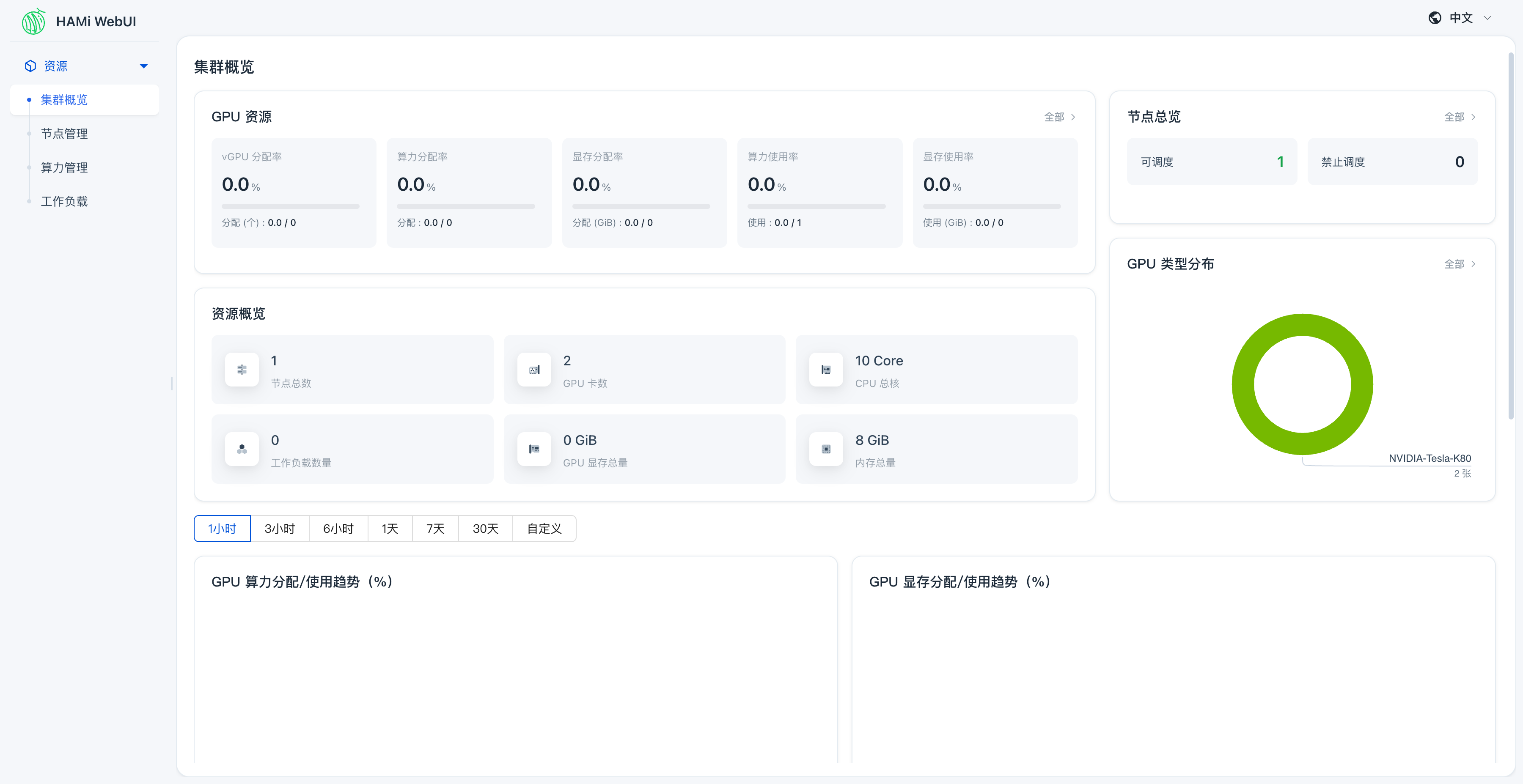
The cluster overview page shows:
- Total Nodes: 1, GPU Cards: 2
- Resource Overview: Total CPU cores, total memory, total GPU memory
- GPU Type Distribution: Shows the simulated Tesla-K80
- GPU Compute/Memory Trend Charts: From Prometheus DCGM metrics
Click "Node Management" in the left sidebar to view GPU node details:
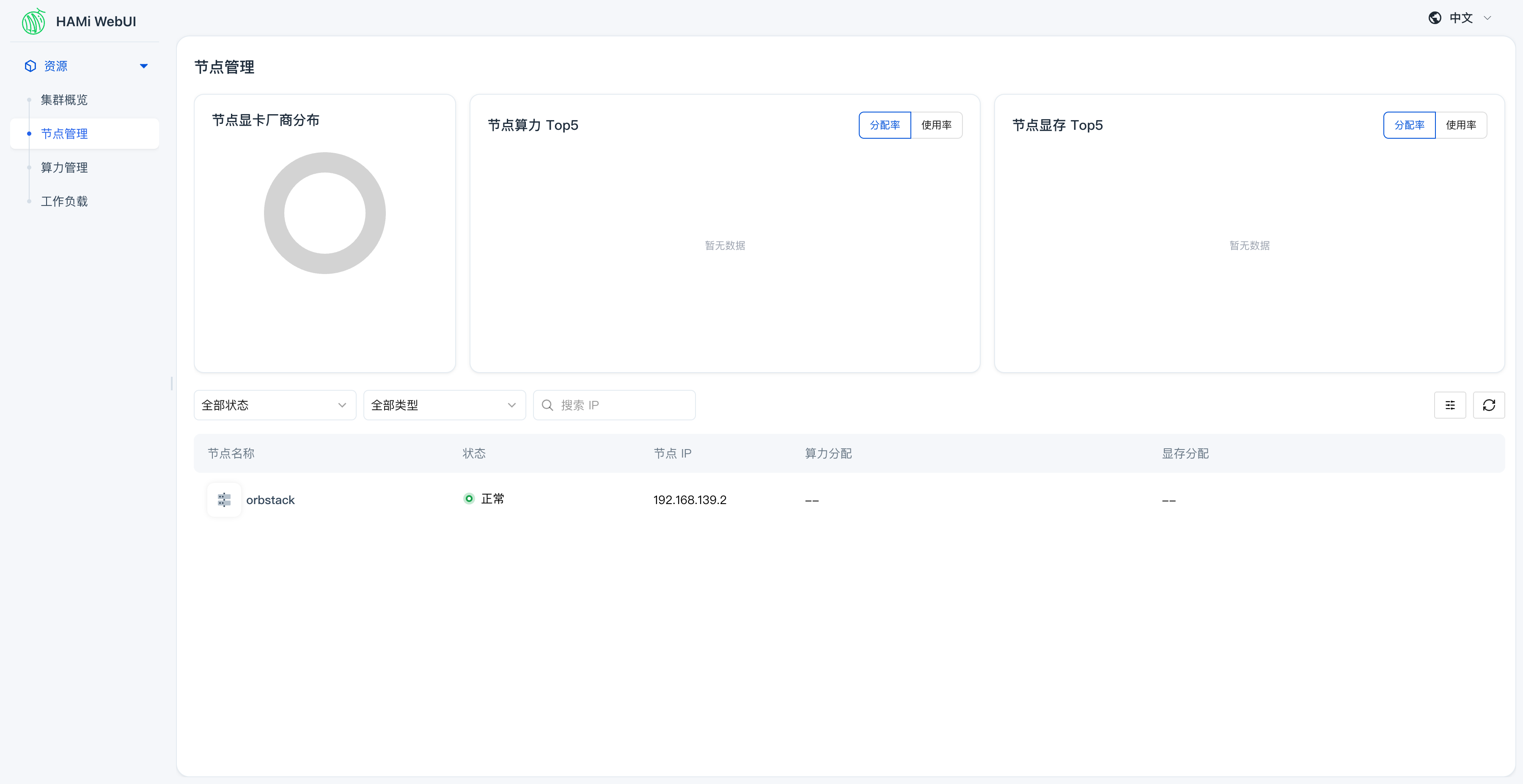
The Node Management page shows each node's GPU device list, memory allocation, and running workloads.
Step 7: Observe the Boundaries of HAMi and fake GPU
What HAMi Is Responsible for in This Lab
kubectl get deploy,svc,cm,sa -n kube-system | grep hami
deployment.apps/hami-scheduler           1/1     1            1           28m
service/hami-scheduler   NodePort    192.168.194.156   <none>        443:31998/TCP,31993:31993/TCP   28m
configmap/hami-scheduler                                         1      28m
configmap/hami-scheduler-device                                  1      28m
serviceaccount/hami-scheduler                                0         28m
HAMi only deployed the scheduler in this lab. Since
devicePlugin.enabled=falsewas set, HAMi's device-plugin is not running. This means HAMi's core GPU slicing capability is not enabled.
What fake-gpu-operator Is Responsible for in This Lab
kubectl get daemonset,deploy,pod -n gpu-operator
NAME                                  DESIRED   CURRENT   READY   UP-TO-DATE   AVAILABLE   NODE SELECTOR                                    AGE
daemonset.apps/device-plugin          1         1         1       1            1           nvidia.com/gpu.deploy.device-plugin=true         31m
daemonset.apps/mig-faker              0         0         0       0            0           node-role.kubernetes.io/runai-dynamic-mig=true   31m
daemonset.apps/nvidia-dcgm-exporter   1         1         1       1            1           nvidia.com/gpu.deploy.dcgm-exporter=true         31m
...
fake-gpu-operator is responsible for the entire lifecycle of simulated devices: device discovery, resource reporting, and metrics export. It simulates the behavior of a real GPU Operator.
View node capacity:
kubectl describe node ${NODE_NAME} | grep -A10 "Capacity:"
Capacity:
  cpu:                10
  ephemeral-storage:  148577276Ki
  memory:             8185404Ki
  nvidia.com/gpu:     2
  pods:               110
nvidia.com/gpu: 2appears in the node capacity, confirming that fake-gpu-operator successfully registered simulated GPU resources. The Kubernetes scheduler treats this node as having 2 GPUs.
What This Lab Cannot Verify
The following capabilities require a real NVIDIA GPU environment:
- HAMi device-plugin actually registering GPUs and writing
hami.io/node-nvidia-register nvidia.com/gpumemmemory slicingnvidia.com/gpucorescompute ratio limits- CUDA programs actually running
- Memory overcommit, memory analysis, memory override
- Real DCGM GPU metrics
To continue learning these capabilities in full, use a real GPU environment as described in Lab 1: Online HAMi Installation.
Cleanup
Delete the test Pod:
kubectl delete pod fake-gpu-pod
pod "fake-gpu-pod" deleted
Uninstall HAMi WebUI:
helm uninstall my-hami-webui -n kube-system
Uninstall HAMi:
helm uninstall hami -n kube-system
Uninstall Prometheus:
helm uninstall prometheus -n monitoring
kubectl delete namespace monitoring
Uninstall fake-gpu-operator:
helm uninstall gpu-operator -n gpu-operator
kubectl delete namespace gpu-operator
Clean up node labels and annotations:
kubectl label node ${NODE_NAME} gpu- run.ai/simulated-gpu-node-pool-
kubectl annotate node ${NODE_NAME} hami.io/node-nvidia-register- hami.io/node-handshake-
If you want to keep the environment for further experimentation, you can skip the cleanup.
Next Steps
After completing this lab, we recommend continuing with HAMi Cluster Architecture, focusing on understanding the responsibility boundaries of the scheduler, device-plugin, webhook, and GPU Operator.